
This FAQ briefly explains how to connect a cable TV source to an IPTV encoder, configure basic network and streaming settings on the hotel WiFi, and ensure the TV channels stream correctly to guest room TVs.
Step 1: Connect the Encoder to the Hotel Network
Power on the encoder.
Connect the encoder to your computer through Ethernet cable.
Step 2: Access the Encoder Settings
Find the encoder's IP address from the device display or network settings.
Open a web browser on the computer connected to the encoder.
Enter the encoder's IP address in the browser.

Log in using the administrator username and password.
Step 3: Configure Network Settings
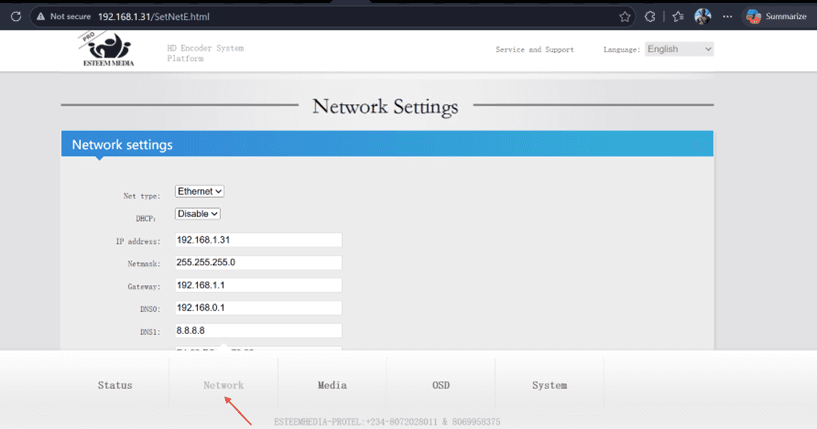
Navigate to Network Settings
Connect another PC to the hotel wifi router.
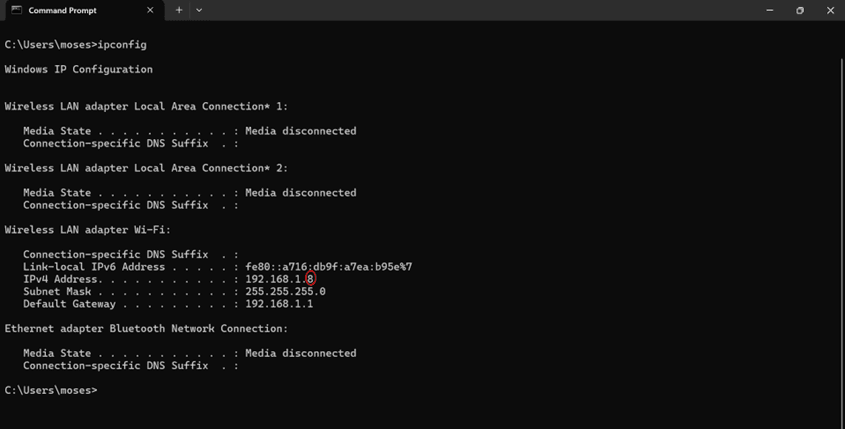
Once it’s connected, go to Command Prompt
Type in “ipconfig” and click enter. You would see the ip settings of the hotel router.
Now go back to the encoder network settings on the computer connected to the encoder
Copy the ip address from the command prompt and input it on the encoder ip but change the last number to a random number from 1- 249
Input the same subnet mask and default gateway.
For DNS 1 and DNS 2, use “8.8.8.8”
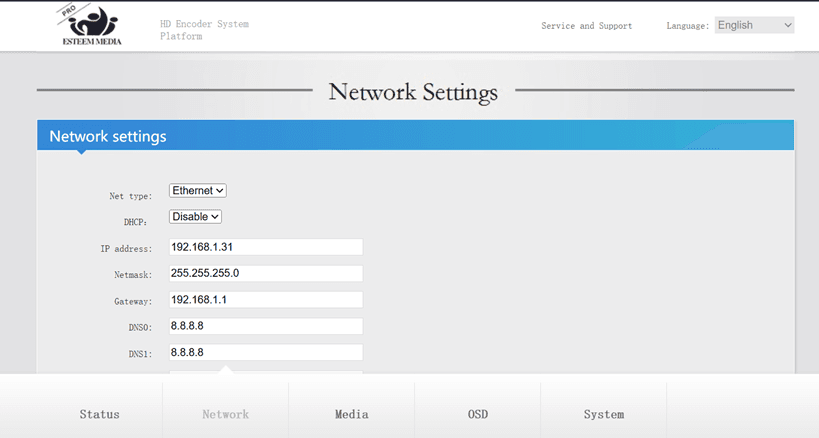
Save the settings and confirm the encoder is online.
Take note of the new ip address of the encoder. To login the encoder settings from now on you just have to connect to the hotel wifi network and input the ip address on the computer’s browser.
Step 4: Configure IPTV Streaming Settings
Go to Streaming Settings or Media
Enter the IPTV server URL, multicast address, or stream destination provided by your IPTV provider. Also make sure HLS stream is turned ON.
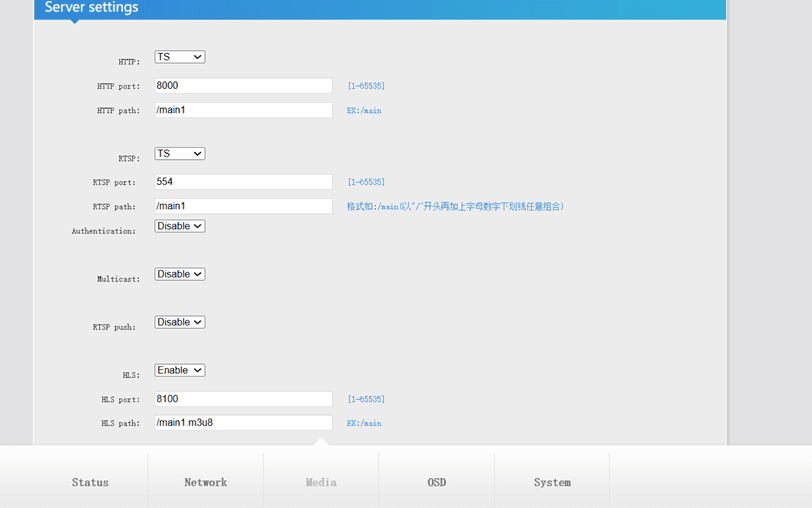
Set the required bitrate, resolution, and audio settings.
Use image below for best media settings.
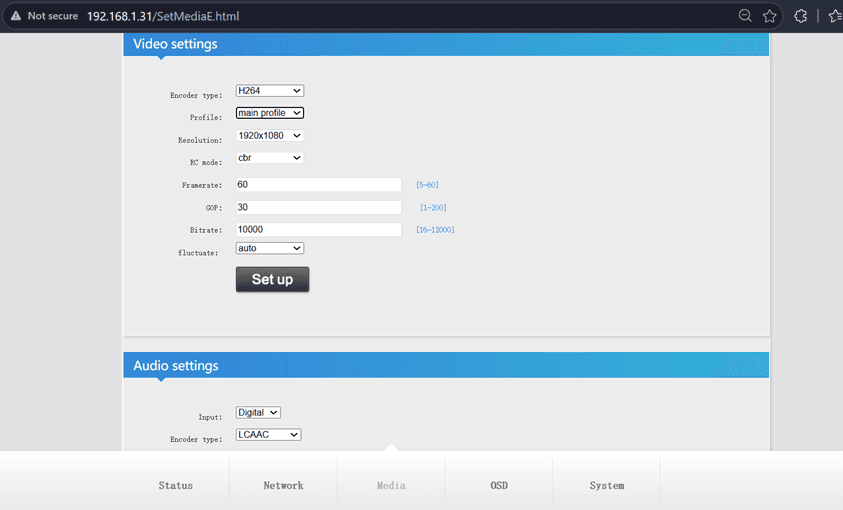
Save and apply the configuration.
Step 5: Connect the DStv Decoder
Connect the DStv decoder's HDMI output to the encoder's HDMI input.
Ensure the DStv decoder is powered on and displaying a channel.
Verify that the encoder detects the video and audio signal from the decoder.
Step 6: Start the Stream
Return to the encoder dashboard.
Click Start Streaming or Enable Stream or simply check the status of the encoder.
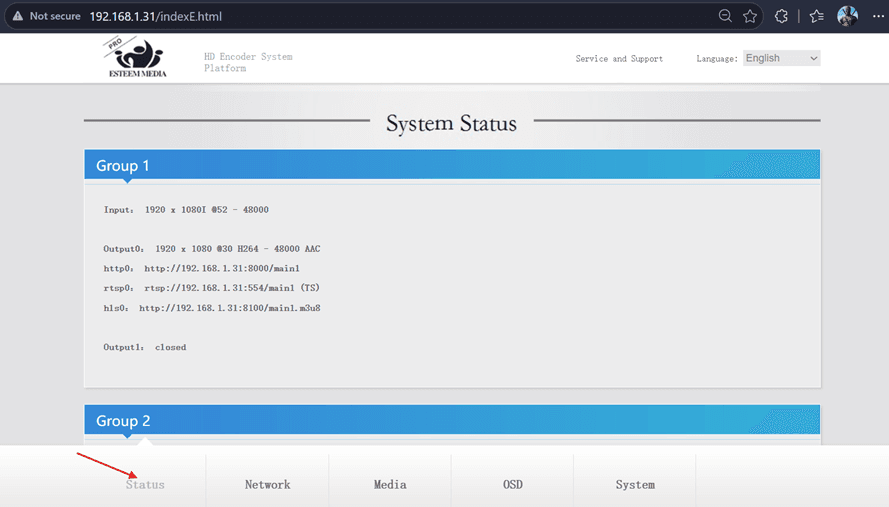
Confirm that the stream status shows Active and returns the stream urls.
Step 7: Verify IPTV Output
Open VLC on your computer.
Click “Ctrl + N” and input the HLS stream url.
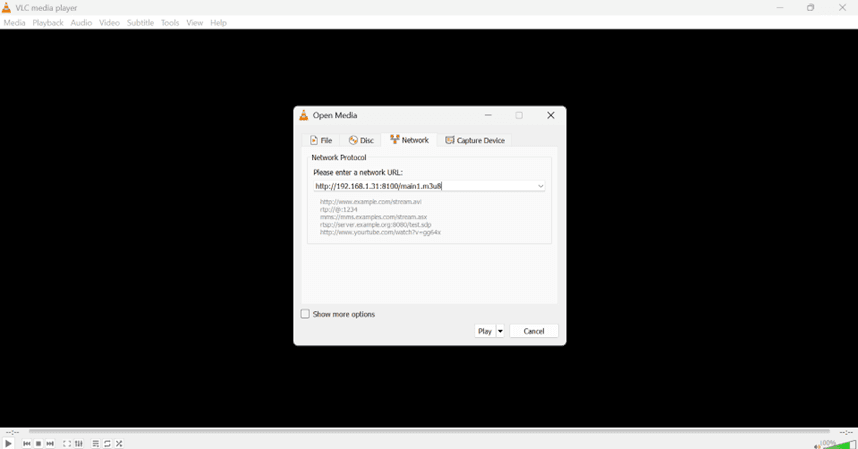
Check that the DStv channel is streaming correctly on your computer.
Verify video quality, audio quality, and stream stability.
Troubleshooting
Ensure the hotel WiFi allows streaming traffic.
Check that the encoder and DStv decoder are properly connected.
Verify internet connectivity on the encoder.
Restart the encoder and decoder if the stream does not start.
Contact your IPTV provider if stream credentials or server details are incorrect.
If you experience any issues, contact your system administrator or IPTV support team for assistance.